



Measuring HTML size and exploring why it might be big.
Extensions
Intro
This is a description for a tool to measure HTML and it’s tag “waste”. Main functionality is to measure how much tags (and inline css/js) contribute to the HTML page size. It previously a personal tool that I converted chrome and firefox extension because of a requestion from a couple of my friends. Here I am describing what and how it measures and look at some examples.
What exactly is measured?
There are different approaches to measure HTML but for this version of the app I measure insides of the tag and content of script, style and svg. Everything else is just difference between total size for HTML documents and total size of all “tags”.
Self closing tags

Self closing tags are tags without any “content”. They are self sufficient and can end with either “/>” or just regular “>”. These are all meta, link, doctype, input and etc. They are fully consumed and fully contribute for total size of tags. This tag increase tag count by 1.
Regular tags
 Regular tags have 2 tags, one opening tag and one closing tag. For size we count
everything within (and including) “<” and “>” of opening tag and everything for
the closing tag. But any non-tag content between the opening and closing tag is not
counted. If tag has tags inside it each inner tag is counted separately. These
opening and closing tags even though look like 2 tags count as single tag in ’tag
count'.
Regular tags have 2 tags, one opening tag and one closing tag. For size we count
everything within (and including) “<” and “>” of opening tag and everything for
the closing tag. But any non-tag content between the opening and closing tag is not
counted. If tag has tags inside it each inner tag is counted separately. These
opening and closing tags even though look like 2 tags count as single tag in ’tag
count'.
SVG tag
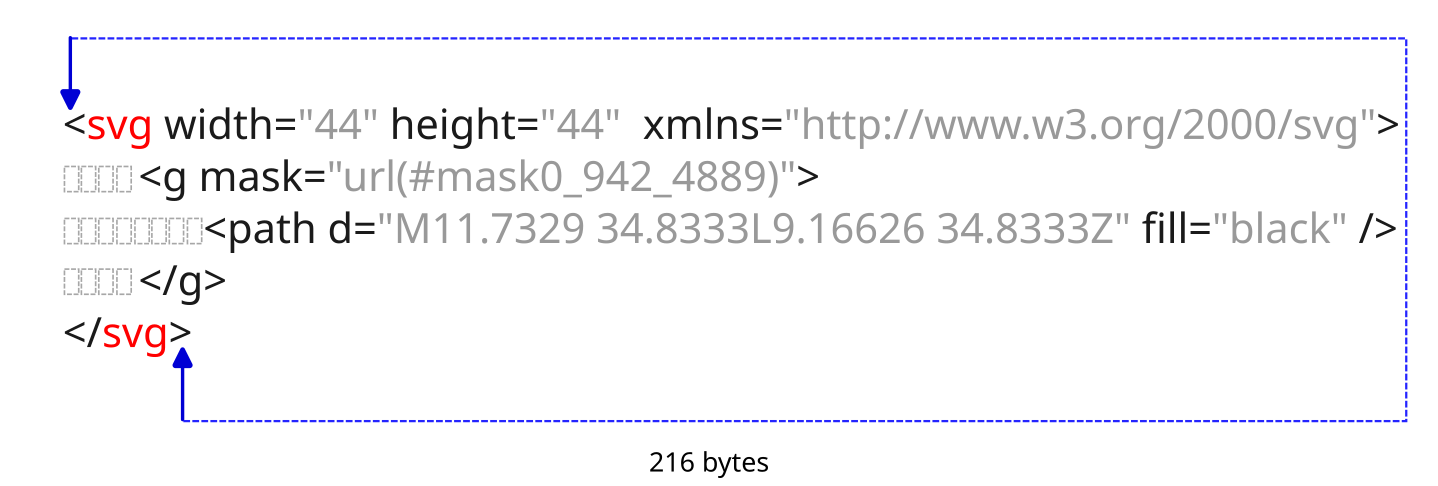
Usually this tag should be processed as “regular tags” but I decided to count svg and all of its content tags as single. Since I was building this for myself I didn’t care much about different “g”, “path” and other svg tags. It is enough for me to just count SVG instance and how much space it occupies. Opening, closing and all contents add 1 to tag count.
Script tag
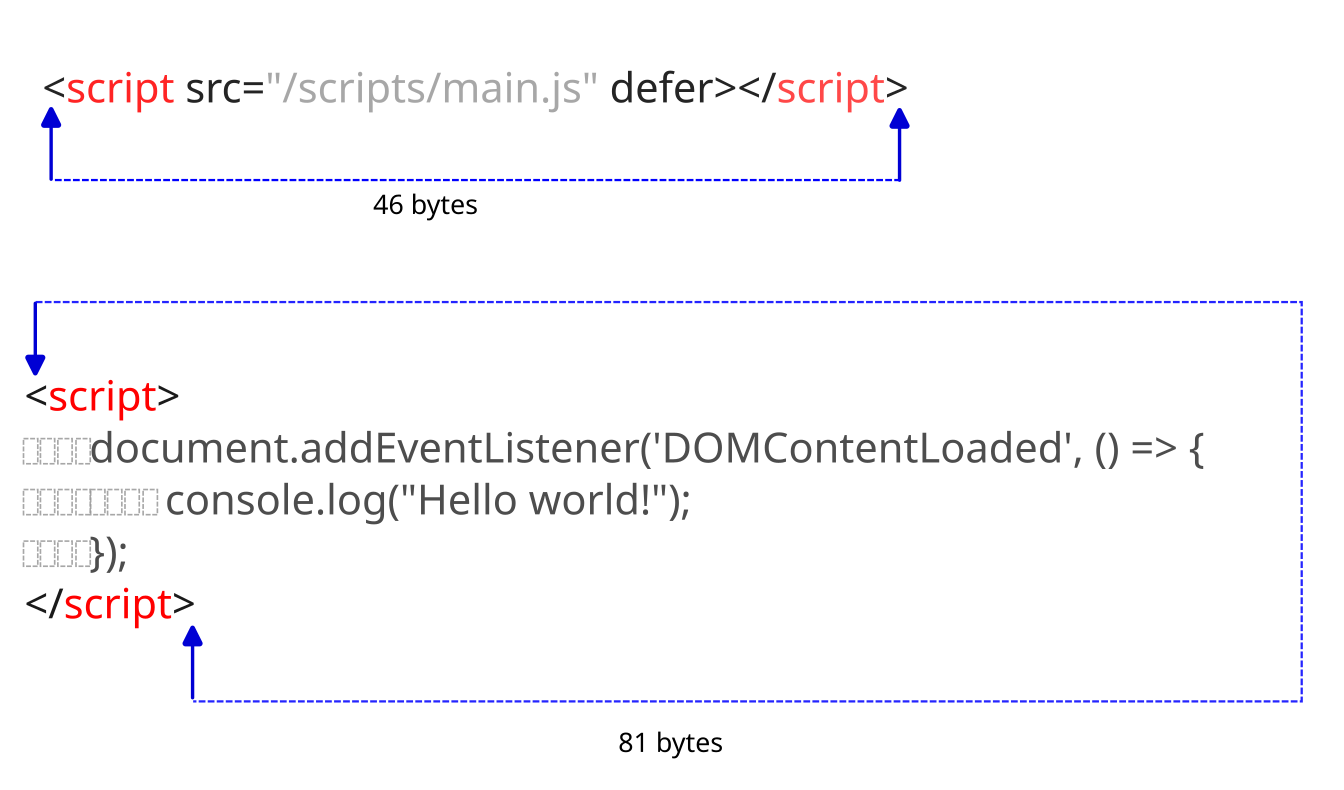 Script tags also count a total of both tag’s opening and closing parts inner
portion. It also just goes over all inner content and add all of inner contents
including spaces into total size of this tag. Everything from start of opening
tag all the way to the end of closing this tag is counted as 1 script tag.
Script tags also count a total of both tag’s opening and closing parts inner
portion. It also just goes over all inner content and add all of inner contents
including spaces into total size of this tag. Everything from start of opening
tag all the way to the end of closing this tag is counted as 1 script tag.
Style tag
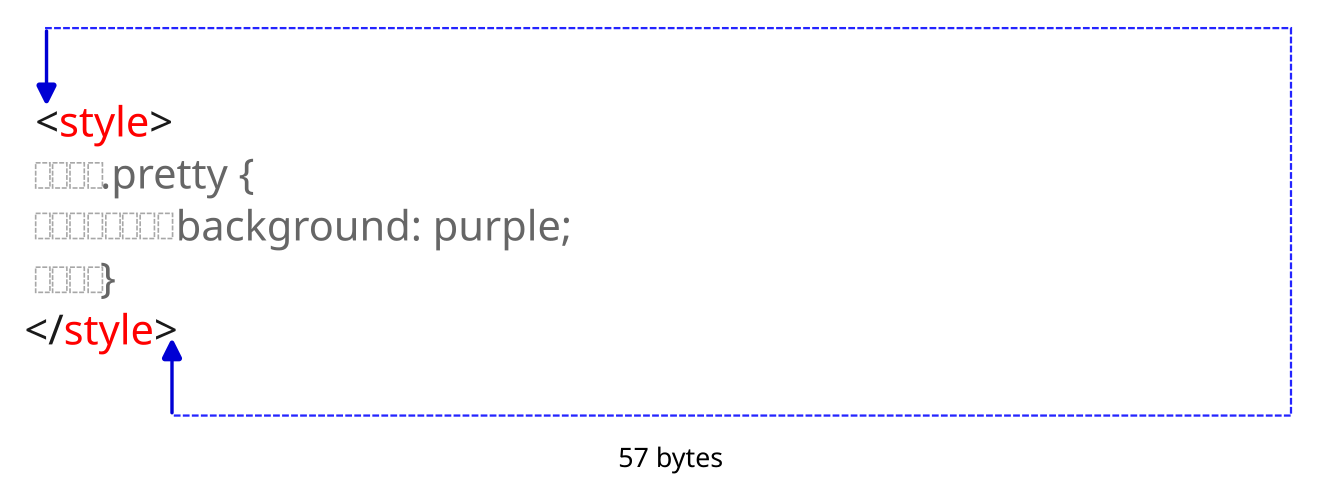
Style tags function exactly the same as script tags. Anything everything from start of the tag and all the way to closing tag is counted as 1 tag and it’s all this content size is added the size of tag’s size.
Raw vs Processed HTML
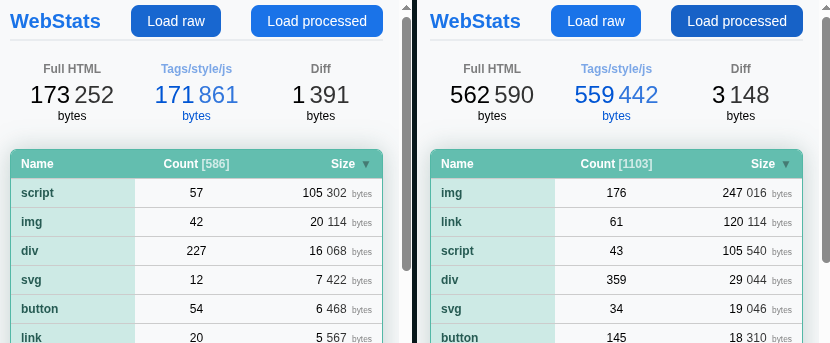
There a two different versions of HTML: raw and processed. Processed version is current version of HTML after loading and processing by browser and after modifications from javascript. Pressin “Load processed” button will request current version and recalculate tags. Processed HTML is gotten using:
document.documentElement.outerHTML
You can open developer tools and get this data yourself.
Getting raw version is a bit more involved. We send ‘GET’ request to the same url that the tab is on and redownload the whole HTML page from scratch again. It does it using:
fetch(window.location.href)
    .then(...)
    ...
This is because browser does not have it and we need to get raw bytes. This version is needed to know what HTML the server sends to render this page. This is raw size without compression so if it says 173 Kb it does not mean that it actually was downloading whole 173Kb. For example for this page on the picture the actual download was 49 Kb which was decompressed into 173 Kb. When extension popup windows opens it loads “processed” version.
The totals
The totals are calculated by taking all tags and just combining their sizes. In this version we can assume that for most tags in the table it shows sum of just inner part of the tags. So ‘div’ tags it will count opening and closing tags insides. It means it will include in calculation all inner styles, class definitions, data attributes and etc.
For script, *style and svg it will calculate not only tag but also contents of the tag. This seems like a wrong way to calculate but this is good enough for me as it give me quick look if inner script and css are taking more space than I expected.
“Full HTML” is just raw size in bytes of the whole page. ““Tags/style/js” is total of tag size and contents of inner js/css. “Diff” is just (Full Size) - (Tags). So diff is roughly text content + all the spaces/tabs.
So let’ have a look at this strange case:
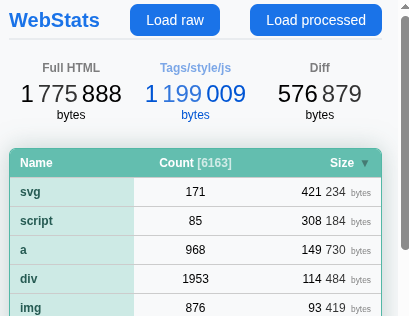
It looks like there is 1+ megabyte for
tags and almost 600K for “text”. For that page it seemed a bit too much (a
product page in a webstore). I spent some time doing some manual “vimfu” to remove
all tags and inner js/css manually. So initially we start with 1.7 Mb. After
removing all the tags we get a 547 Kb file. Which looks like this:

So from this image we can see that there is quite a lot more spaces than text
(spaces are colored orange/yellow). But how much is space actually taking? For
this I remove all spaces, tabs and empty lines. The size droped to 27 Kb file
and looked like this:
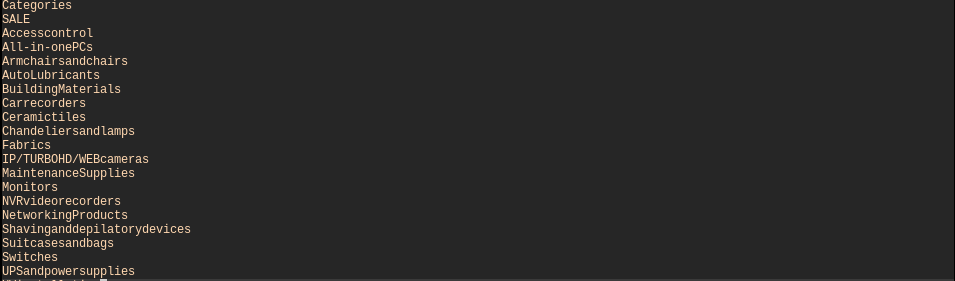
I removed spaces between words but didn’t remove new lines here. The file was 1292 lines it accounts for another 1K.
So this gives us files:
  1.7M  raw.html
  547K  tags_removed.html
   27K  spaces_removed.html
Of course this is a bit incorrect as we removed all spaces including ones between the words. But for this case I think we can easily assume that “unneeded” spaces take at least 400 Kb. For this version of the extension I didn’t add automatical calculation for these spaces as I didn’t need it for my use case but might add it in the future.
Some other examples
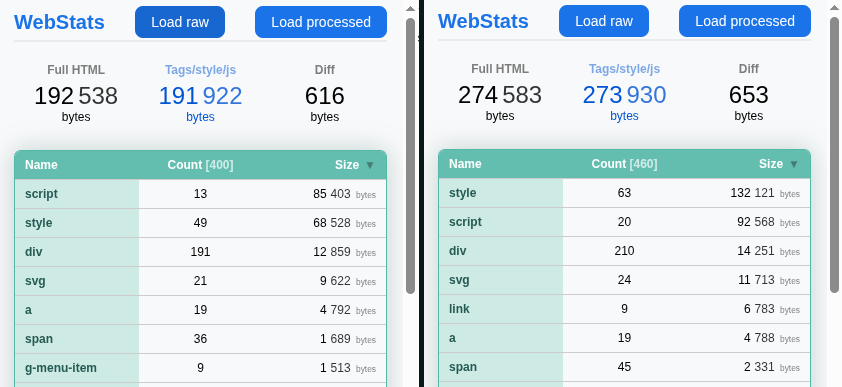
Here is more examples on different sites. Left image shows ‘raw’ downloaded version and right is ‘processed’ by browser and js.
Google.com
Gmail
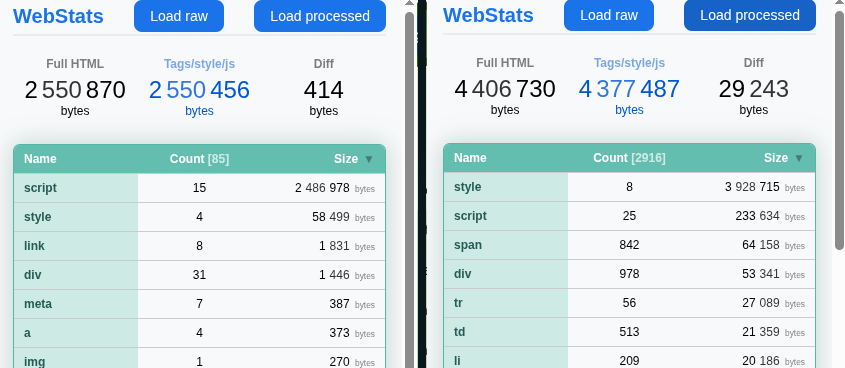
One article in this block
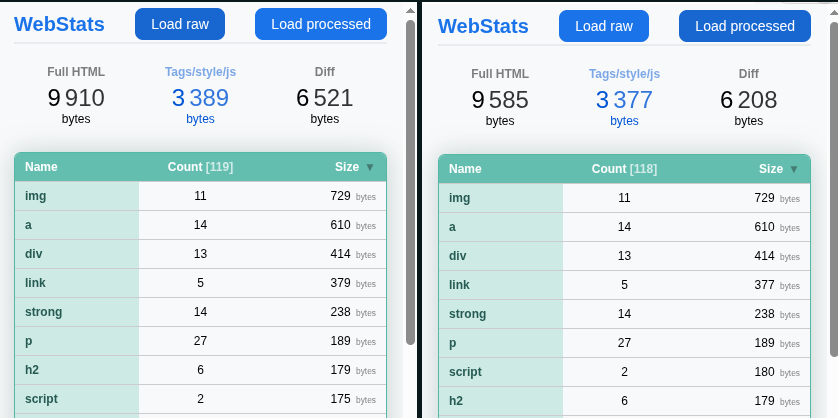
Hackernews frontpage
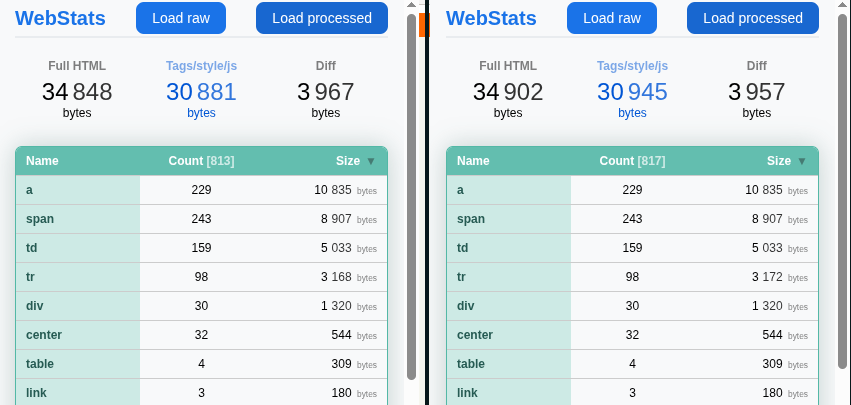
Conclusion
This is just short description for a chrome/firefox extension to explore tags in HTML page. It will be updated when anything changes inside extension so this can be used as up to date documentation. Extensions are workign only tested and working on desktop versions of chrome and firefox.